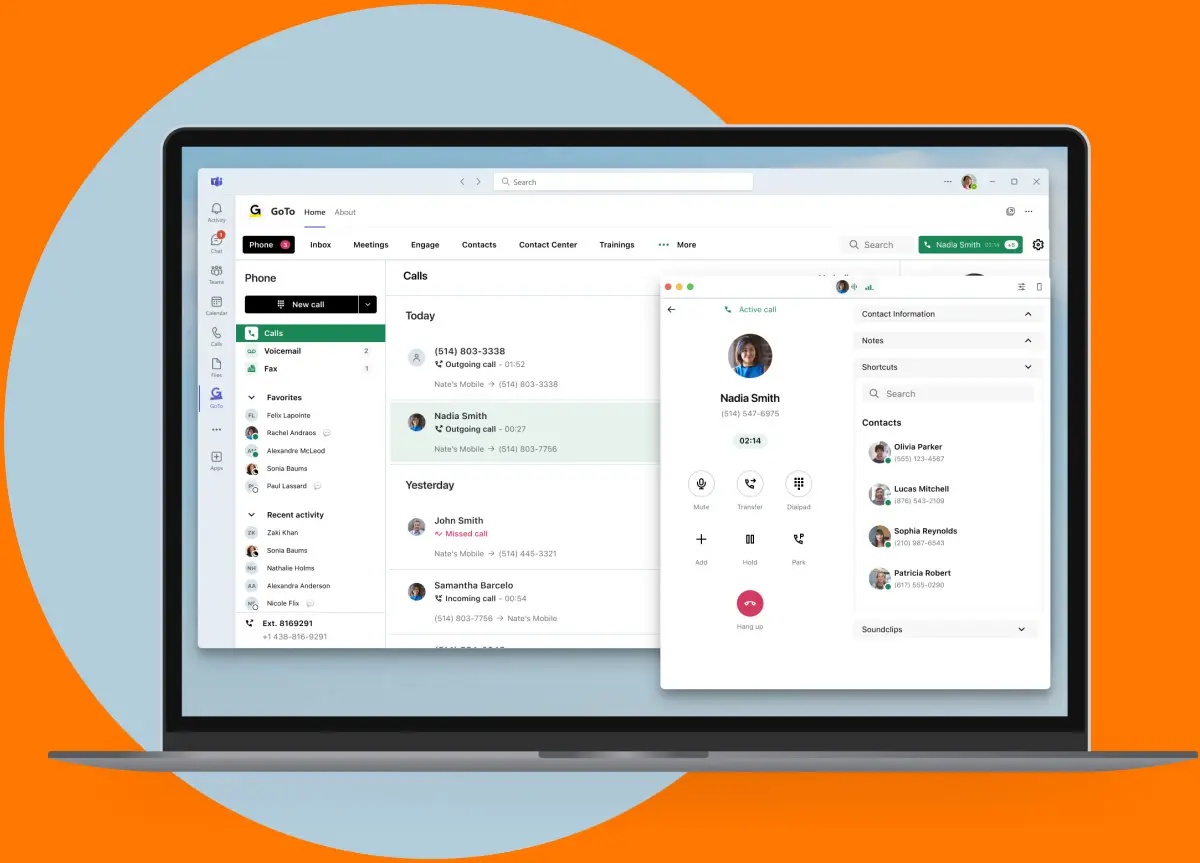
GoTo for Microsoft Teams: Make and Receive Calls Seamlessly
If your business relies on GoTo for VoIP phone service and Microsoft Teams for collaboration, you can now integrate the two for an even more seamless communication experience. With the GoTo for Microsoft Teams plugin, you can make and receive calls directly through Microsoft Teams—no need to switch between apps or devices.
This new integration complements GoTo’s existing web app, desktop app, and mobile apps, giving users yet another way to stay connected and manage calls efficiently.
What Is GoTo for Microsoft Teams?
GoTo for Microsoft Teams is a native integration that allows users to place and receive business calls from within the Microsoft Teams interface while still utilizing GoTo’s VoIP service. Instead of needing a separate softphone or desk phone, your Teams workspace becomes your phone system, streamlining communication for hybrid and remote teams.
Key Features of GoTo for Microsoft Teams
- Make and receive calls directly in Microsoft Teams using your GoTo VoIP service.
- Seamless call management, including hold, transfer, and voicemail access, all within Teams.
- Enhanced flexibility—use GoTo in Teams alongside its web, desktop, and mobile apps.
- Business number integration, keeping your professional communications centralized.
- Works with existing Microsoft Teams contacts, making it easy to call teammates without switching apps.
- Easy setup and quick deployment for businesses already using Microsoft 365 and GoTo VoIP services.
How to Set Up GoTo for Microsoft Teams
Setting up the GoTo for Microsoft Teams plugin is simple. Here’s how to get started:
1. Verify Your GoTo & Microsoft 365 Accounts
Ensure that your business has an active GoTo Connect VoIP plan and Microsoft 365 Business subscription.
2. Assign a GoTo License to Microsoft Users
From the GoTo Admin Center, assign a GoTo for Microsoft Teams license to each user who needs access.
3. Install the GoTo App in Microsoft Teams
- Open Microsoft Teams and navigate to the Apps section.
- Search for GoTo and install the integration.
4. Sign in and Configure the Plugin
- Once installed, launch the GoTo app within Teams.
- Log in with your GoTo credentials and follow the guided setup.
- Configure call routing and set your GoTo number as the default calling option in Teams.
5. Start Making and Receiving Calls
That’s it! You can now make calls from Teams' native dialer, access voicemail, and manage calls using GoTo’s reliable VoIP service—all without leaving Microsoft Teams.
For detailed setup instructions, visit GoTo’s official support page.
Why Use GoTo for Microsoft Teams?
With hybrid work environments and remote collaboration on the rise, businesses need streamlined communication tools. The GoTo for Microsoft Teams integration ensures that employees can manage calls effortlessly within the same platform they use for messaging, video calls, and collaboration.
This integration also eliminates the need for switching between multiple apps and reduces hardware dependency, allowing users to work from anywhere with a laptop, tablet, or smartphone.
Get Started with GoTo for Microsoft Teams
If you’re already using GoTo VoIP services and Microsoft Teams, integrating them is a game-changer for efficiency and productivity. Ready to get started? Follow the setup guide or contact PremierePC for assistance in optimizing your VoIP and collaboration tools.
No using our Hosted Phone service? Learn more and get started today.